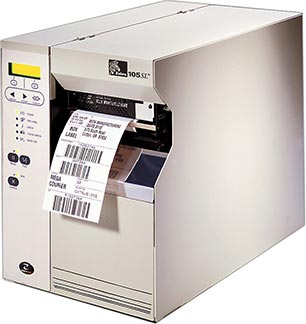
Zebra 105SL Thermal Printer Ribbons - Wax, Wax/Resin & Resin
Zebra 105SL is an economical, metal-cased bar code printer.
|
Ink Side
Coated side out (CSO)
|
Printer Technology
Thermal Transfer
Direct Thermal
|
|||||||
|
|
Thermal Transfer Ribbon Supplies for Zebra 105SL Thermal Printer Printer
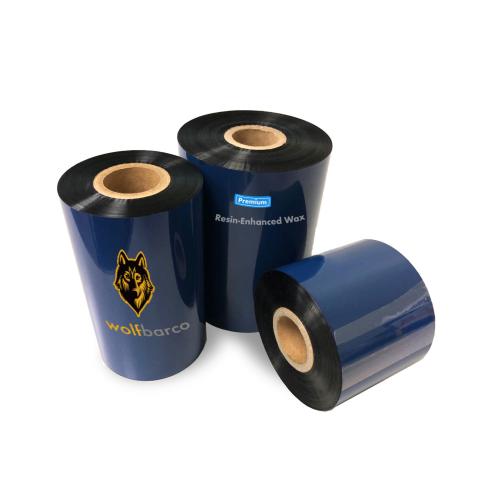
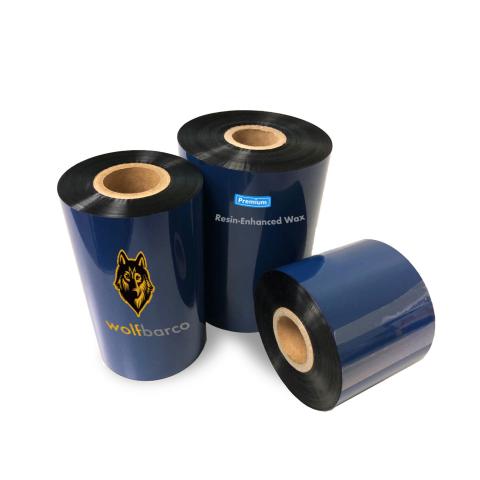
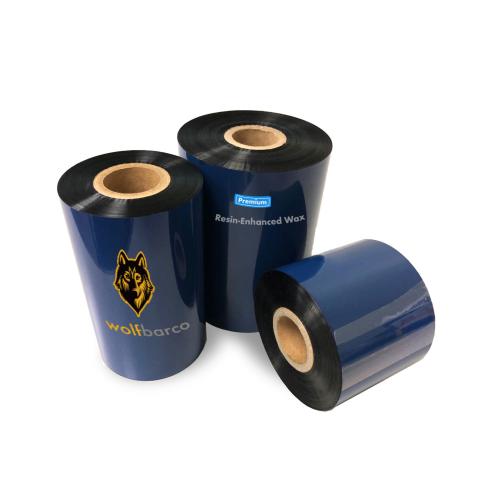
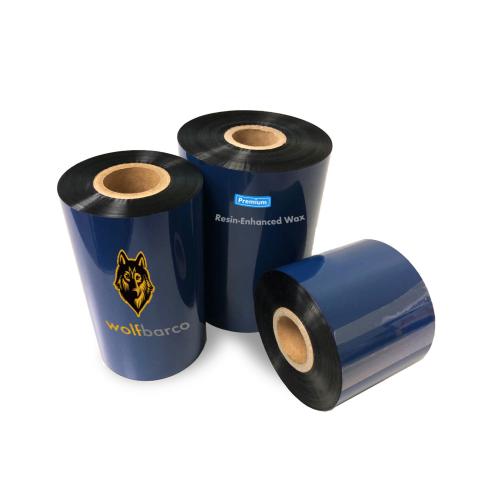
Wolfbarco offers four grades thermal transfer ribbons, general purpose wax, premium wax, wax/resin and resin. It is critical to choose the appropriate grade of ribbon for your printing needs.
Ribbon
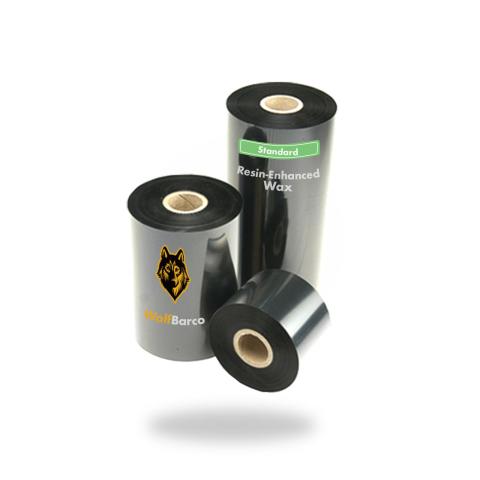
General Purpose Wax
Ink Side: Outside
Core Size: 1"
$2.22
per roll
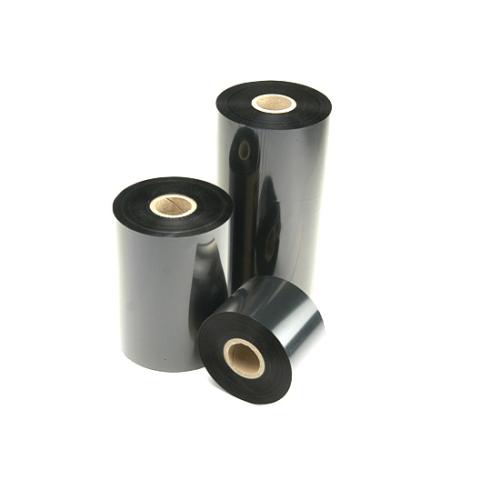
Standard Wax/Resin
Ink Side: Outside
Core Size: 1"
$6.38
per roll
General Purpose Wax
Ink Side: Outside
Core Size: 1"
$3.33
per roll
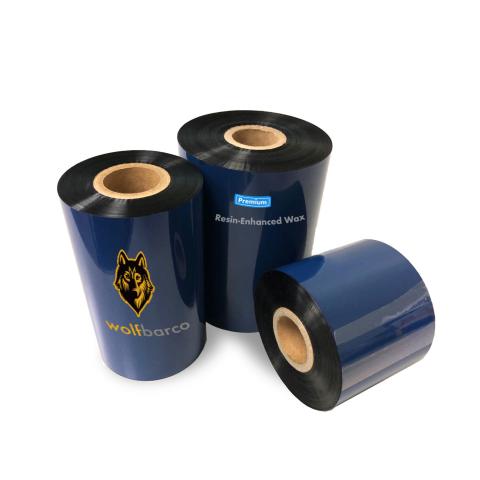
Premium Resin-Enhanced Wax
Ink Side: Outside
Core Size: 1"
$4.63
per roll
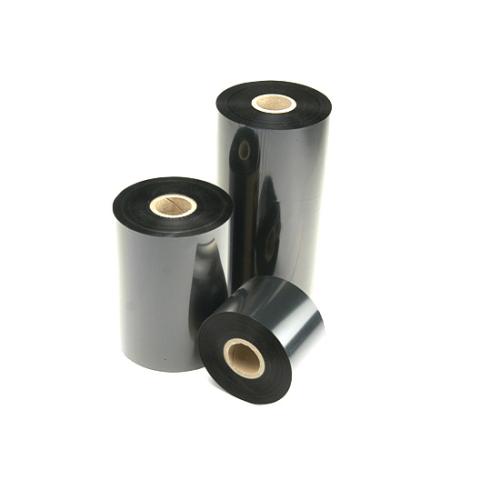
Standard Wax/Resin
Ink Side: Outside
Core Size: 1"
$9.59
per roll
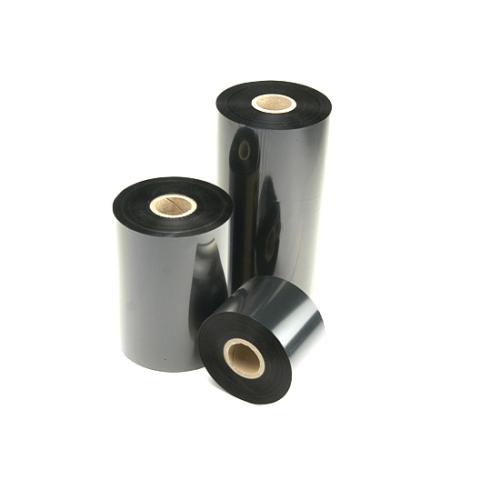
Standard Resin
Ink Side: Outside
Core Size: 1"
$13.14
per roll
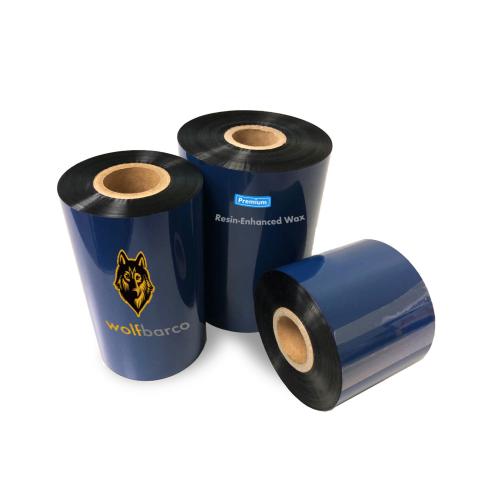
Premium Resin-Enhanced Wax
Ink Side: Outside
Core Size: 1"
$3.09
per roll

Thermal Transfer Ribbon
Ink Side: Outside
Core Size: 1"
$6.39
per roll
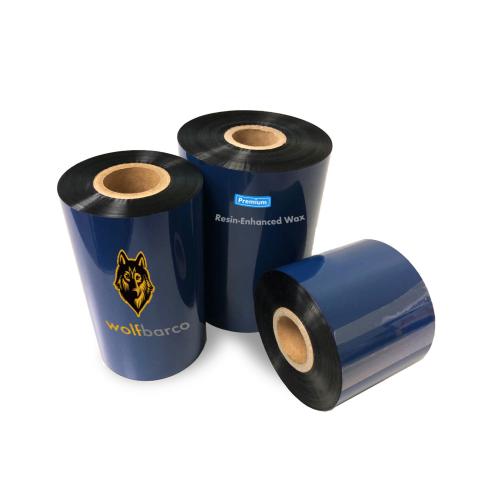
Premium Resin-Enhanced Wax
Ink Side: Outside
Core Size: 1"
$5.02
per roll
Thermal Transfer Ribbon
Ink Side: Outside
Core Size: 1"
$1.69
per roll
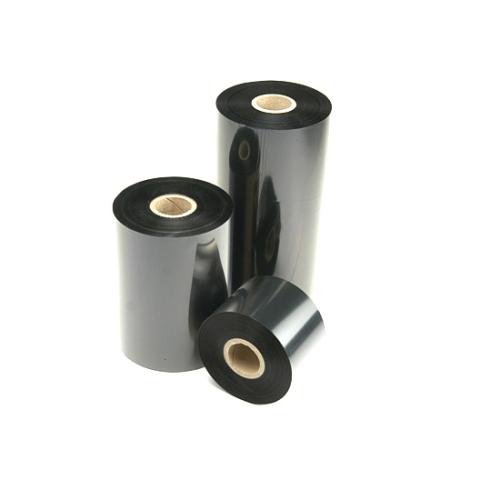
Standard Resin
Ink Side: Outside
Core Size: 1"
$2.31
per roll
Thermal Transfer Ribbon
Ink Side: Outside
Core Size: 1"
$3.90
per roll
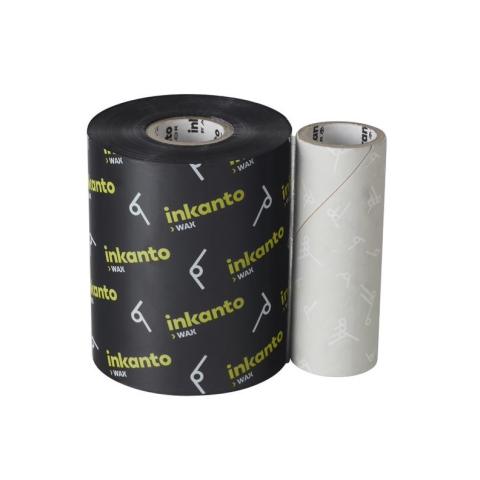
Thermal Transfer Ribbon
Ink Side: Outside
Core Size: 1"
$4.49
per roll
Premium Resin-Enhanced Wax
Ink Side: Outside
Core Size: 1"
$5.87
per roll
Thermal Transfer Ribbon
Ink Side: Outside
Core Size: 1"
$12.15
per roll
Thermal Transfer Ribbon
Ink Side: Outside
Core Size: 1"
$4.45
per roll
Thermal Transfer Ribbon
Ink Side: Outside
Core Size: 1"
$2.97
per roll
Standard Resin
Ink Side: Outside
Core Size: 1"
$11.69
per roll
Premium Resin-Enhanced Wax
Ink Side: Outside
Core Size: 1"
$8.56
per roll
Thermal Transfer Ribbon
Ink Side: Outside
Core Size: 1"
$3.30
per roll
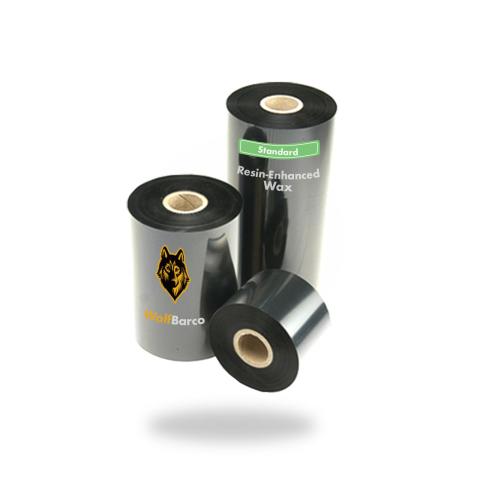
General Purpose Wax
Ink Side: Outside
Core Size: 1"
$5.68
per roll
Standard Resin
Ink Side: Outside
Core Size: 1"
$14.92
per roll
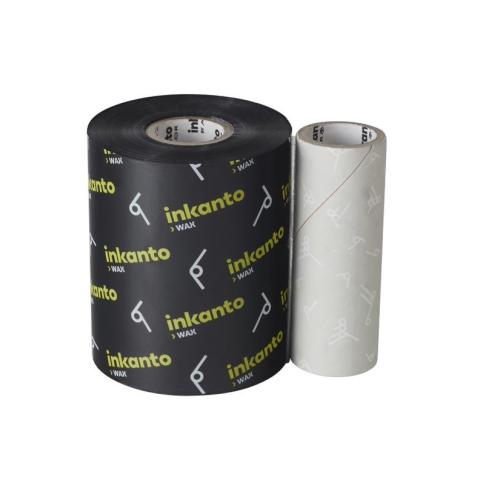
Thermal Transfer Ribbon
Ink Side: Outside
Core Size: 1"
$2.32
per roll
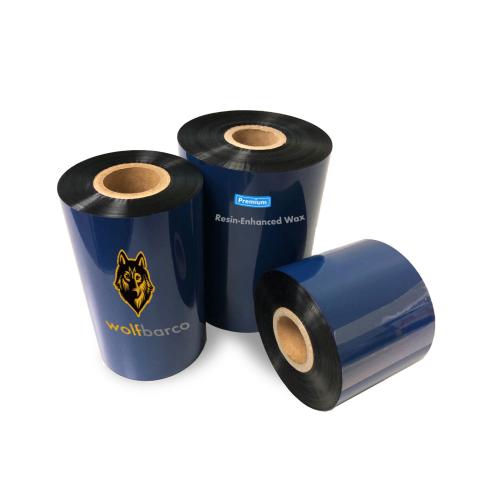
General Purpose Wax
Ink Side: Outside
Core Size: 1"
$8.18
per roll
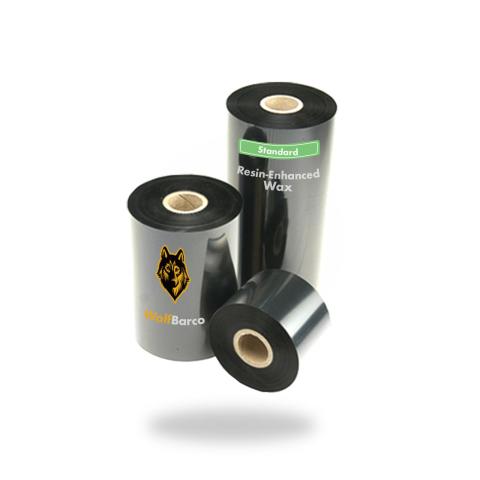
General Purpose Wax
Ink Side: Outside
Core Size: 1"
$3.98
per roll
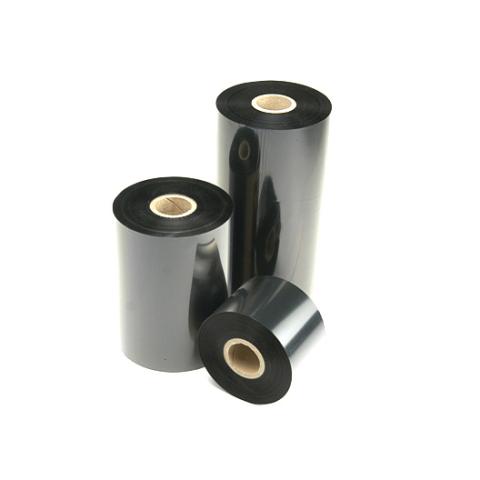
Standard Wax/Resin
Ink Side: Outside
Core Size: 1"
$17.60
per roll
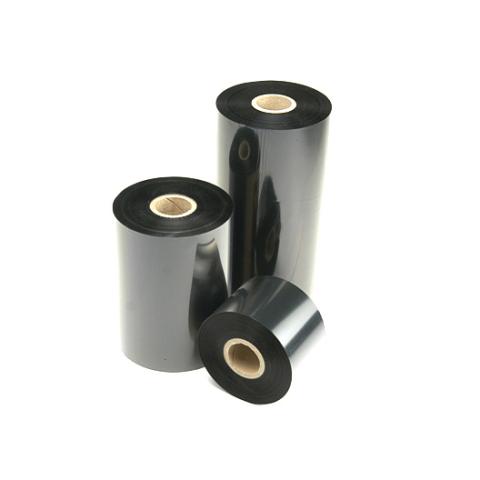
Standard Resin
Ink Side: Outside
Core Size: 1"
$24.11
per roll
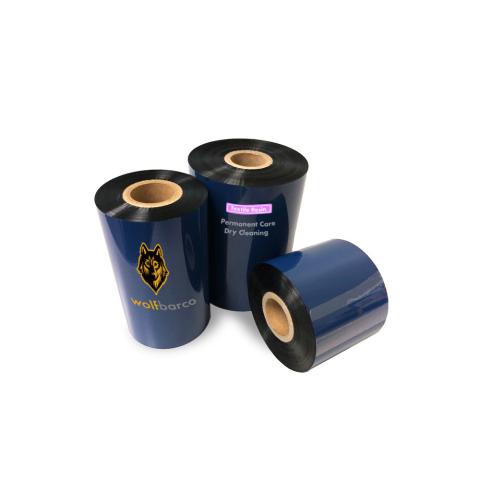
Thermal Transfer Ribbon
Ink Side: Outside
Core Size: 1"
$15.23
per roll
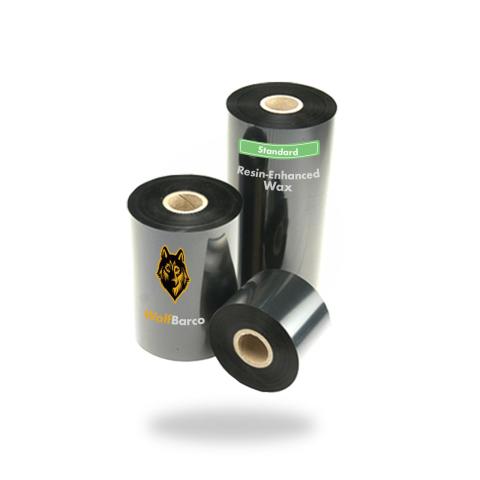
General Purpose Wax
Ink Side: Outside
Core Size: 1"
$3.58
per roll
Standard Wax/Resin
Ink Side: Outside
Core Size: 1"
$11.73
per roll
Thermal Transfer Ribbon
Ink Side: Outside
Core Size: 1"
$17.23
per roll
Thermal Transfer Ribbon
Ink Side: Outside
Core Size: 1"
$17.23
per roll
Thermal Transfer Ribbon
Ink Side: Outside
Core Size: 1"
$17.23
per roll
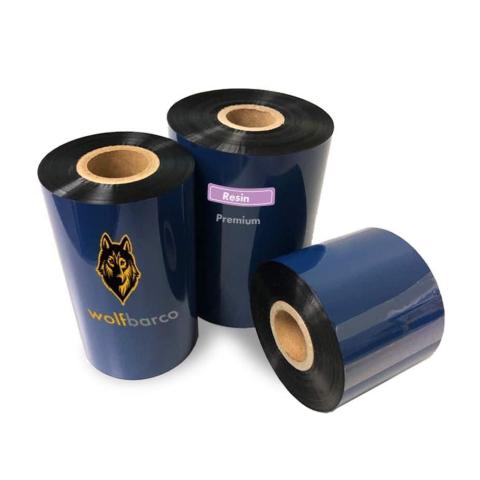
Standard Resin
Ink Side: Outside
Core Size: 1"
$16.07
per roll
Premium Resin-Enhanced Wax
Ink Side: Outside
Core Size: 1"
$5.87
per roll
Premium Resin-Enhanced Wax
Ink Side: Outside
Core Size: 1"
$4.05
per roll
Thermal Transfer Ribbon
Ink Side: Outside
Core Size: 1"
$16.20
per roll
Premium Resin-Enhanced Wax
Ink Side: Outside
Core Size: 1"
$4.53
per roll
Thermal Transfer Ribbon
Ink Side: Outside
Core Size: 1"
$9.67
per roll
Premium Resin-Enhanced Wax
Ink Side: Outside
Core Size: 1"
$13.44
per roll
Thermal Transfer Ribbon
Ink Side: Outside
Core Size: 1"
$27.84
per roll
Premium Resin-Enhanced Wax
Ink Side: Outside
Core Size: 1"
$14.21
per roll
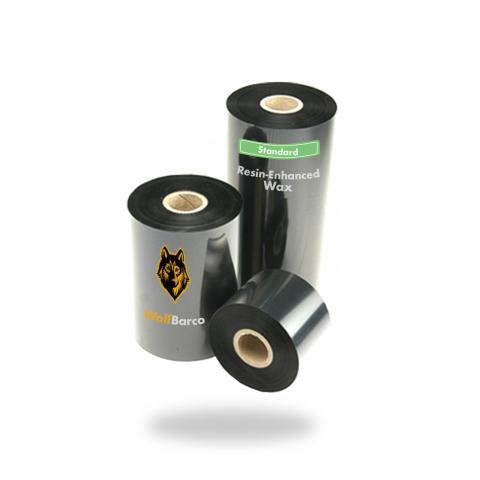
Wax
Ink Side: Outside
Core Size: 1"
$3.56
per roll
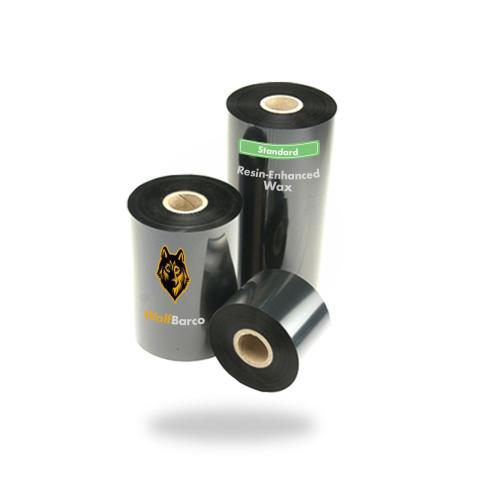
Wax
Ink Side: Outside
Core Size: 1"
$4.62
per roll
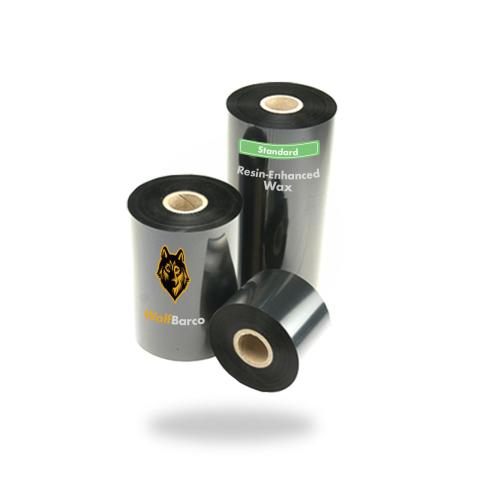
Wax
Ink Side: Outside
Core Size: 1"
$4.94
per roll
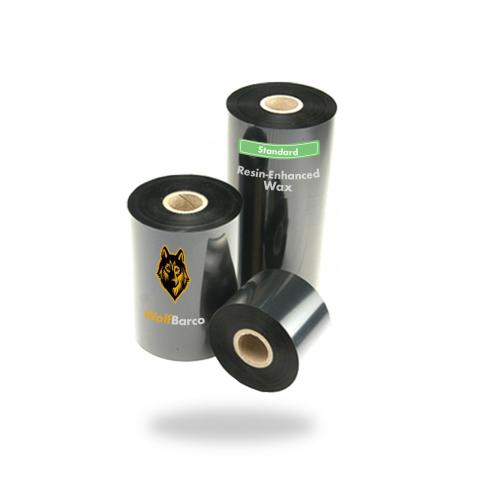
General Purpose Wax
Ink Side: Outside
Core Size: 1"
$3.78
per roll
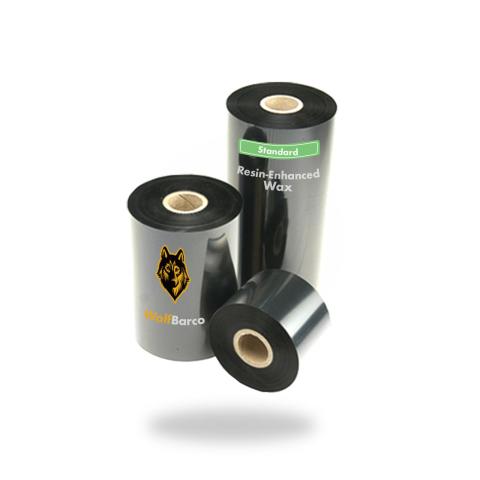
Wax
Ink Side: Outside
Core Size: 1"
$1.99
per roll
Wax
Ink Side: Outside
Core Size: 1"
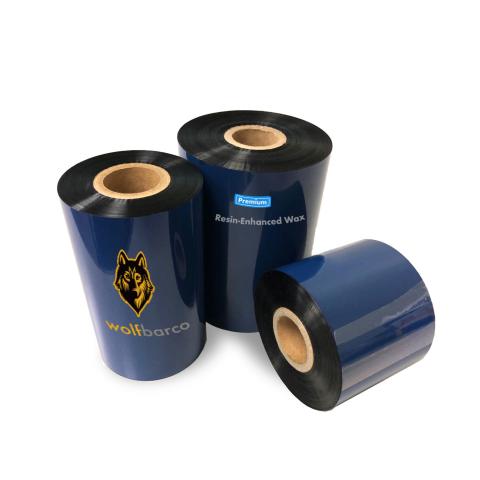
Premium Resin-Enhanced Wax
Ink Side: Outside
Core Size: 1"
$4.94
per roll
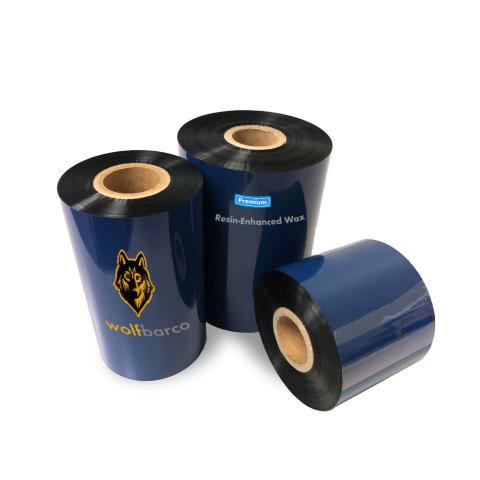
Wax
Ink Side: Outside
Core Size: 1"
$6.18
per roll
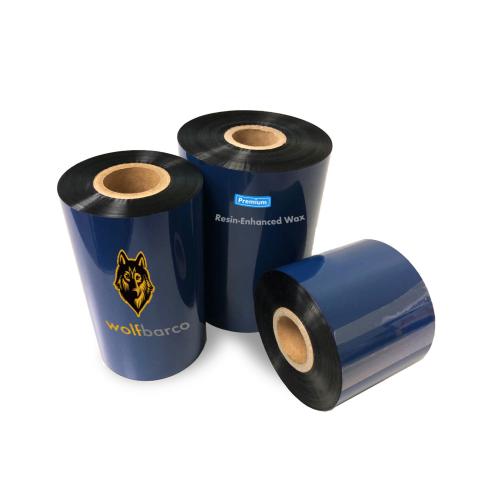
Wax
Ink Side: Outside
Core Size: 1"
$6.42
per roll
Wax
Ink Side: Outside
Core Size: 1"
$6.87
per roll
Wax
Ink Side: Outside
Core Size: 1"
$7.89
per roll
Wax
Ink Side: Outside
Core Size: 1"
$5.26
per roll
Wax
Ink Side: Outside
Core Size: 1"
$2.73
per roll
Wax
Ink Side: Outside
Core Size: 1"
$2.77
per roll
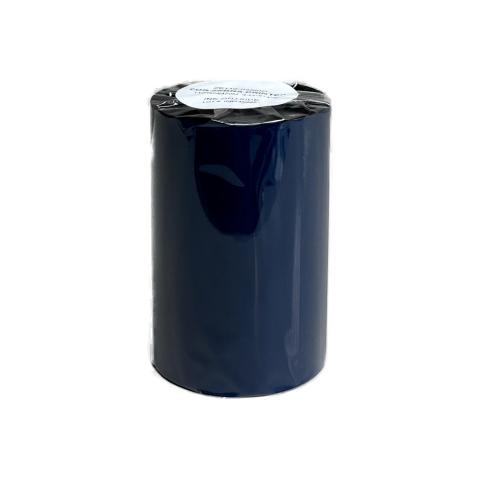
Premium Resin-Enhanced Wax
Ink Side: Outside
Core Size: 1"
$6.38
per roll
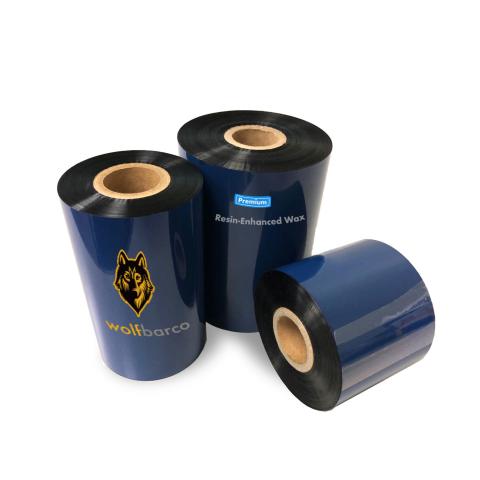
Premium Resin-Enhanced Wax
Ink Side: Outside
Core Size: 1"
$5.66
per roll
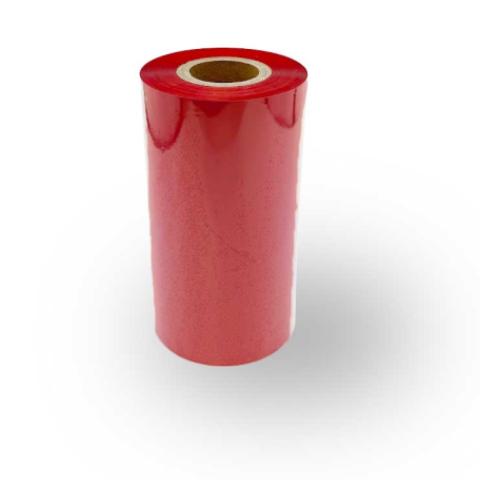
Thermal Transfer Ribbon
Ink Side: Outside
Core Size: 1"
$25.85
per roll
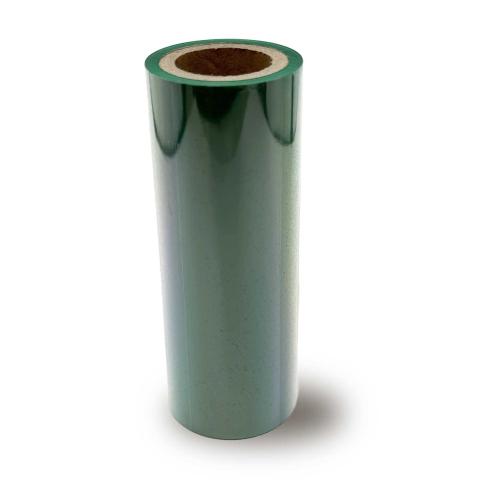
Color wax
Ink Side: Outside
Core Size: 1"
$25.85
per roll
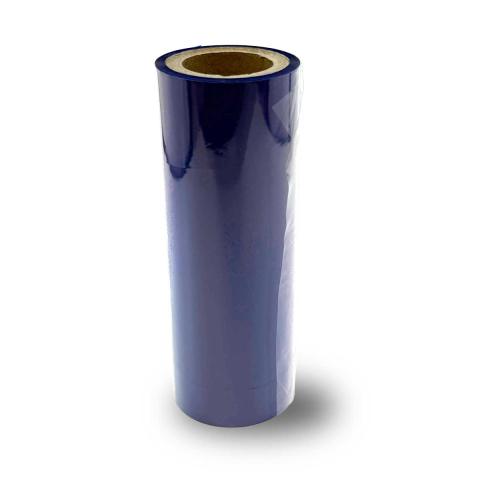
Color wax
Ink Side: Outside
Core Size: 1"
$25.85
per roll
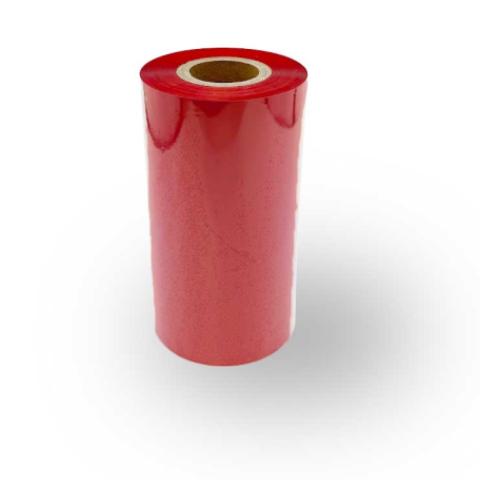
Color wax
Ink Side: Outside
Core Size: 1"
$25.85
per roll
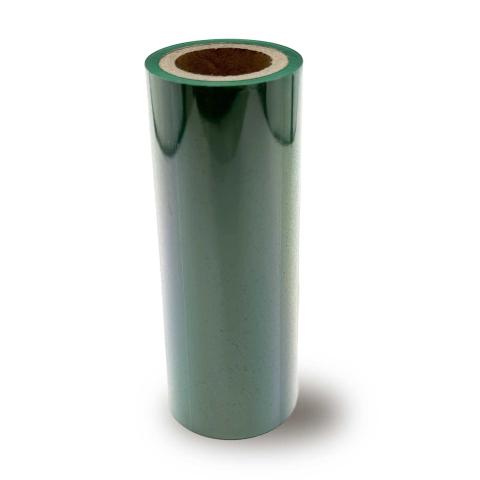
Color wax
Ink Side: Outside
Core Size: 1"
$25.85
per roll
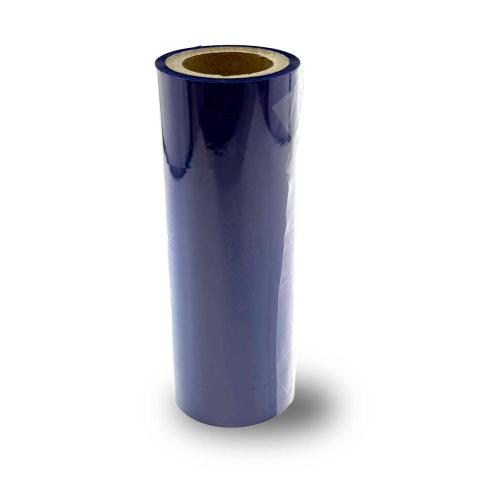
Color wax
Ink Side: Outside
Core Size: 1"
$25.85
per roll
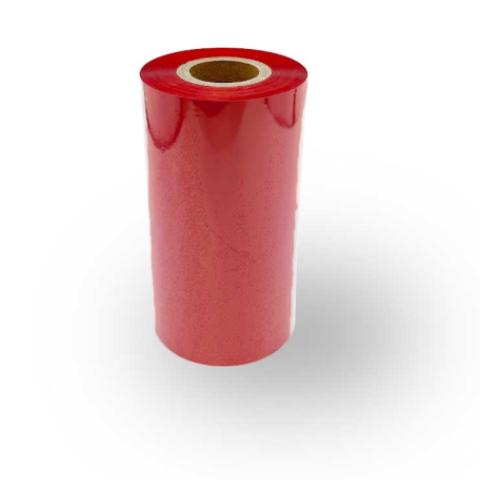
Color wax
Ink Side: Outside
Core Size: 1"
$17.23
per roll
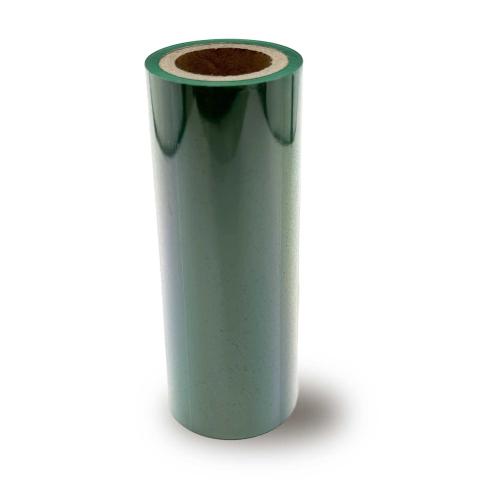
Color wax
Ink Side: Outside
Core Size: 1"
$17.23
per roll
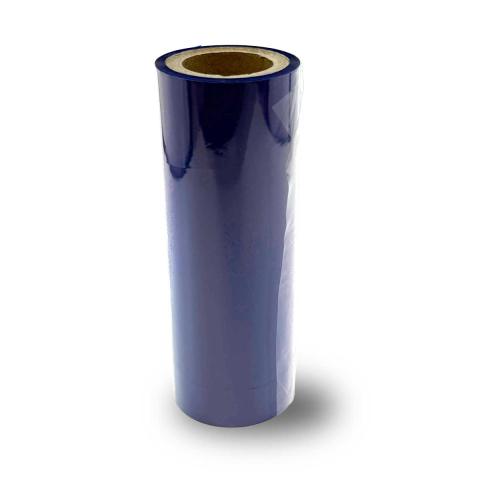
Color wax
Ink Side: Outside
Core Size: 1"
$17.23
per roll
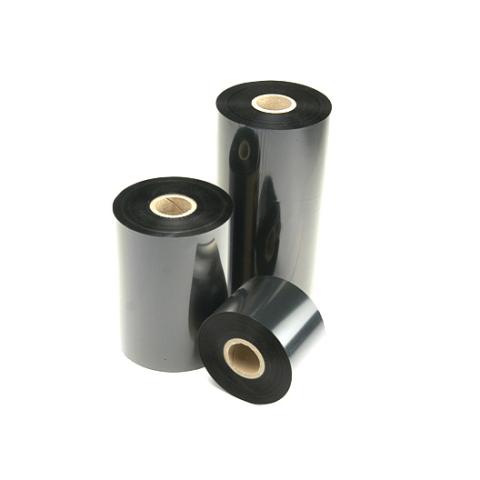
Thermal Transfer Ribbon
Ink Side: Outside
Core Size: 1"
$12.80
per roll
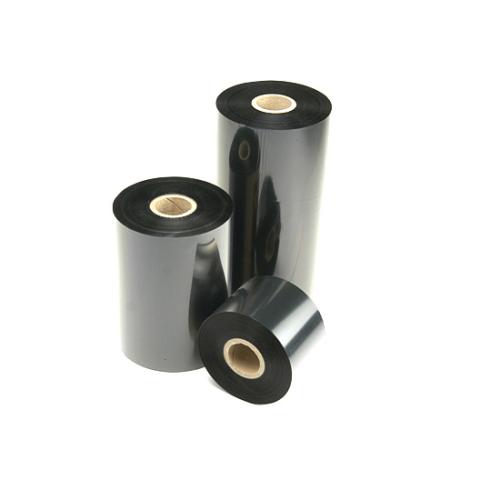
Thermal Transfer Ribbon
Ink Side: Outside
Core Size: 1"
$13.29
per roll
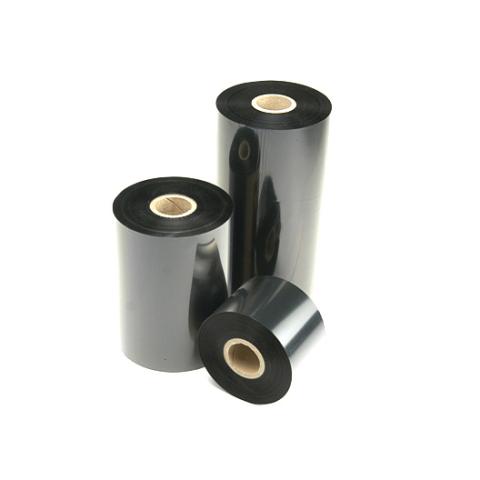
Thermal Transfer Ribbon
Ink Side: Outside
Core Size: 1"
$14.22
per roll
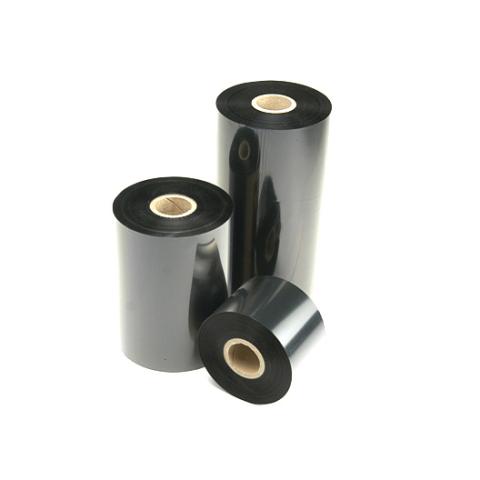
Thermal Transfer Ribbon
Ink Side: Outside
Core Size: 1"
$16.34
per roll
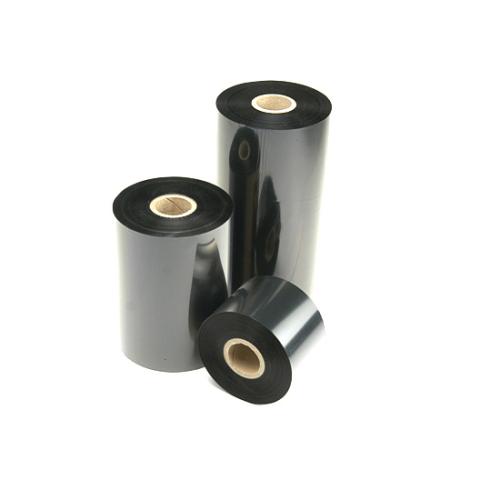
Thermal Transfer Ribbon
Ink Side: Outside
Core Size: 1"
$10.89
per roll
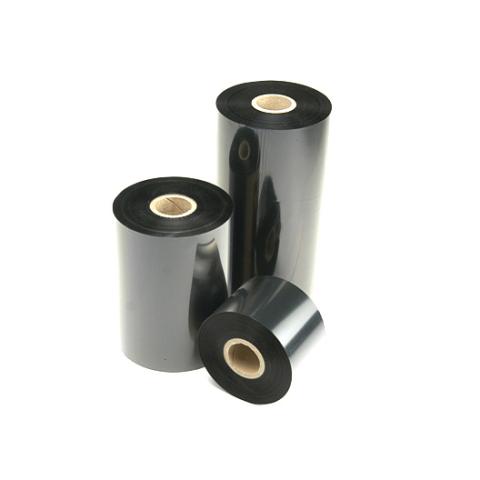
Thermal Transfer Ribbon
Ink Side: Outside
Core Size: 1"
$5.73
per roll
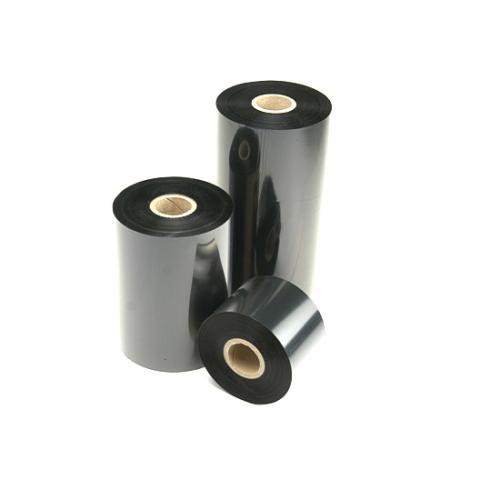
Resin
Ink Side: Outside
Core Size: 1"
$8.74
per roll
Resin
Ink Side: Outside
Core Size: 1"
$8.76
per roll
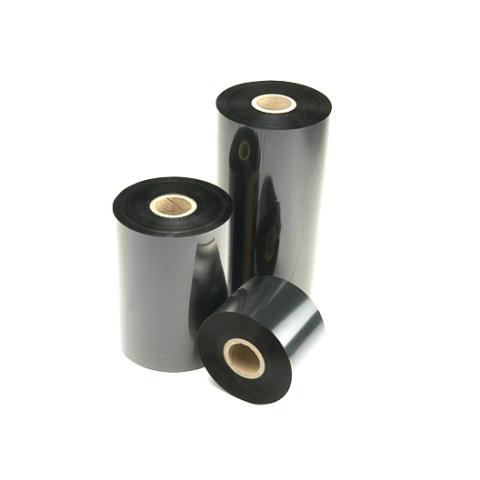
Resin
Ink Side: Outside
Core Size: 1"
$17.54
per roll
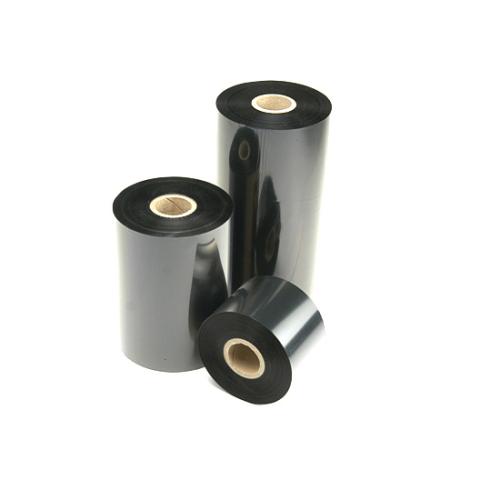
Resin
Ink Side: Outside
Core Size: 1"
$19.49
per roll
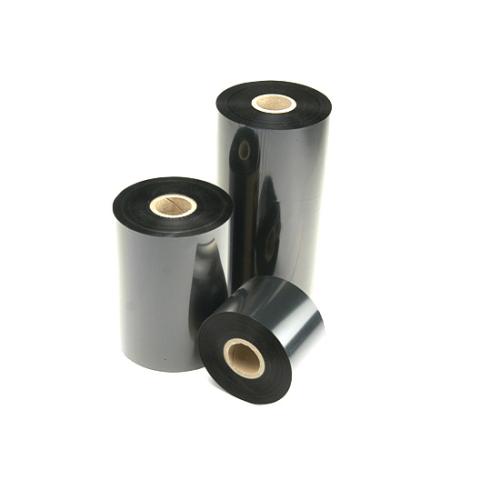
Resin
Ink Side: Outside
Core Size: 1"
$22.38
per roll

Resin
Ink Side: Outside
Core Size: 1"
$7.85
per roll
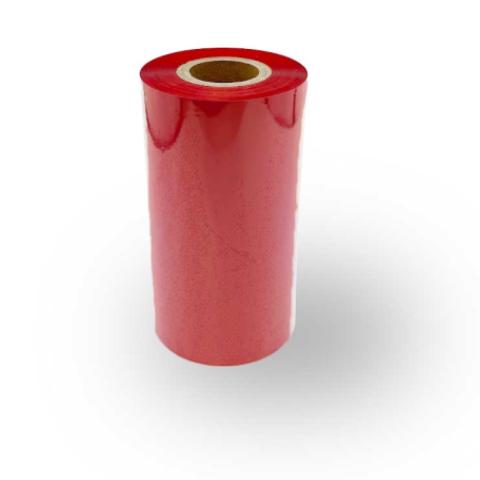
Color Resin
Ink Side: Outside
Core Size: 1"
$15.47
per roll
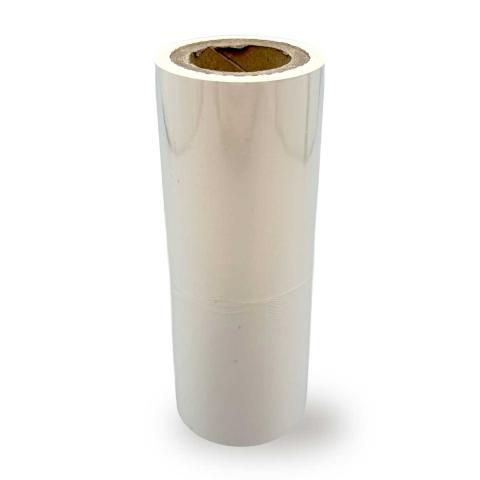
Thermal Transfer Ribbon
Ink Side: Outside
Core Size: 1"
$15.47
per roll
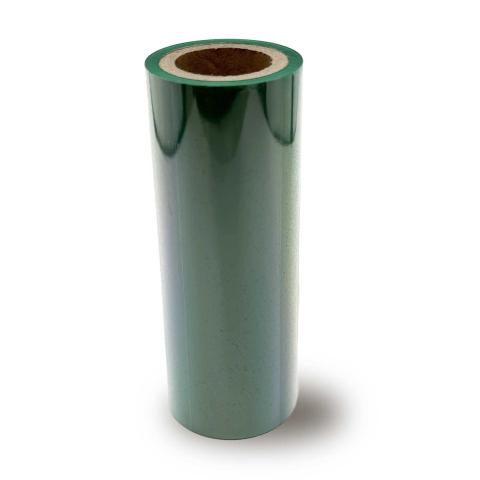
Color Resin
Ink Side: Outside
Core Size: 1"
$15.47
per roll
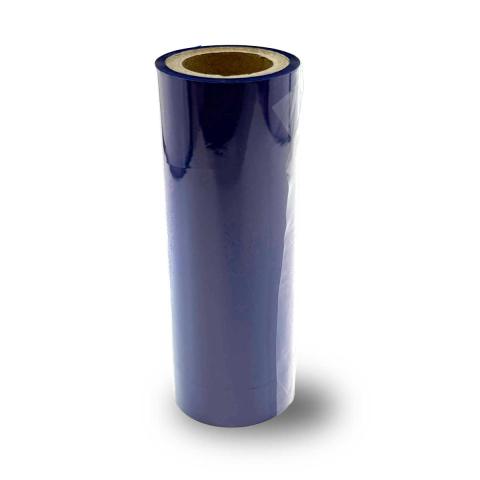
Color Resin
Ink Side: Outside
Core Size: 1"
$15.47
per roll
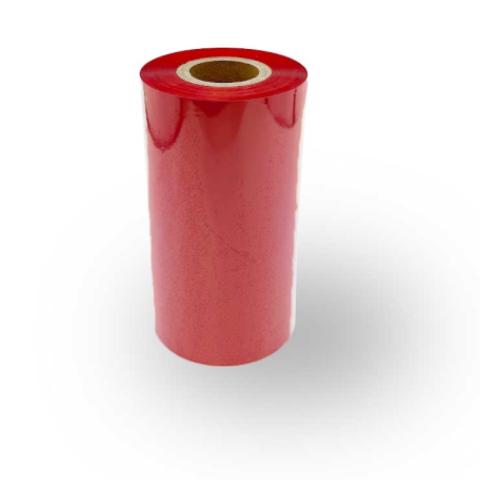
Color Resin
Ink Side: Outside
Core Size: 1"
$26.59
per roll
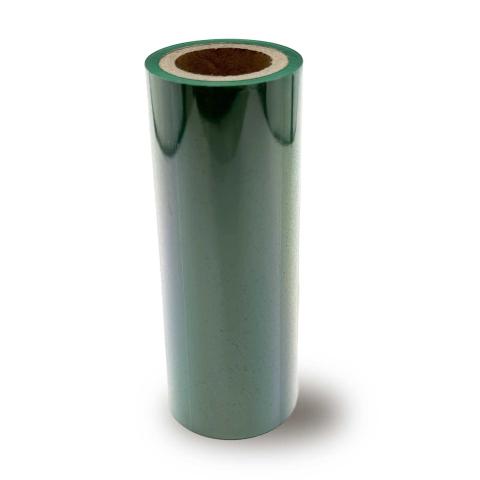
Color Resin
Ink Side: Outside
Core Size: 1"
$26.59
per roll
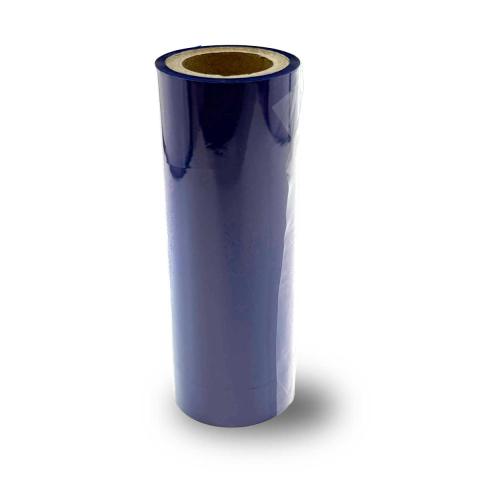
Color Resin
Ink Side: Outside
Core Size: 1"
$26.59
per roll
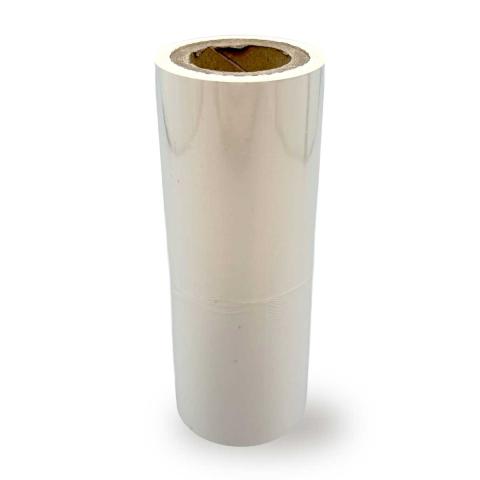
Color Resin
Ink Side: Outside
Core Size: 1"
$53.17
per roll
Label
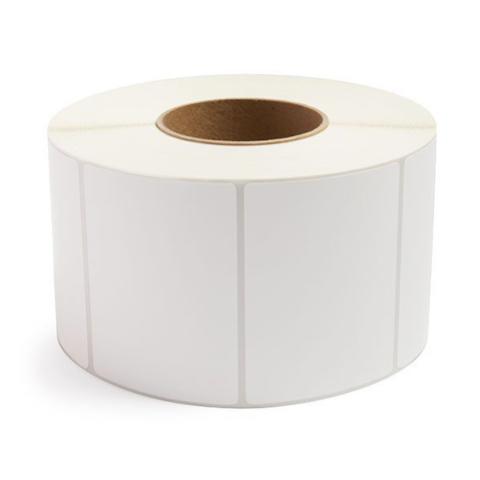
Direct Thermal Label
$14.10
per roll
Direct Thermal Label
$29.99
per roll
Direct Thermal Label
$17.39
per roll
FAQ for Zebra 105SL Thermal Printer Ribbons
What ribbon sizes are compatible with Zebra 105SL?
What ribbon sizes are compatible with Zebra 105SL?
The Zebra 105SL accepts ribbon widths from 0.79" ~ 4.50" (20mm ~ 114mm). Standard lengths include 450 meters. Choose a ribbon at least 0.5" wider than your labels for optimal coverage.
What types of ribbons work with Zebra 105SL?
What types of ribbons work with Zebra 105SL?
The Zebra 105SL supports three ribbon types:
- Wax: Most economical. Best for paper labels and indoor use.
- Wax-Resin: Better durability and scratch resistance. Good for synthetic labels.
- Resin: Maximum durability for harsh environments and polyester labels.
Choose based on your label material and durability needs.
How do I calibrate the Zebra 105SL?
How do I calibrate the Zebra 105SL?
If your Zebra 105SL is skipping labels or printing incorrectly, calibration is needed:
- Turn off the printer
- Press and hold FEED button while turning on
- Wait for the status light to flash
- Release - the printer will feed labels to calibrate
This teaches the printer to detect label size and gaps. Calibrate when changing label sizes.