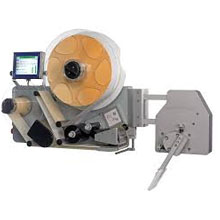
Videojet 9550 Thermal Printer Ribbons - Wax, Wax/Resin & Resin
A high-speed thermal transfer print-and-apply labeler capable of up to 750 mm/sec (29.5 in/sec) with Intelligent Motion technology for zero unplanned downtime.
|
Ink Side
Coated side out (CSO)
|
Printer Technology
Thermal Transfer
|
|||||||
|
|
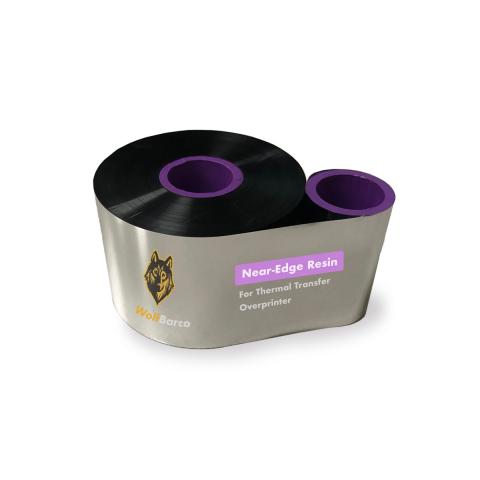
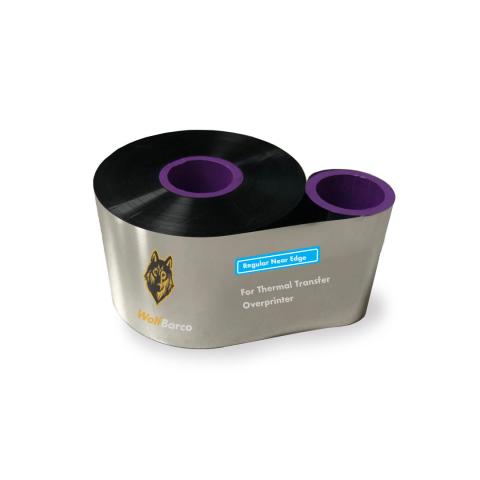
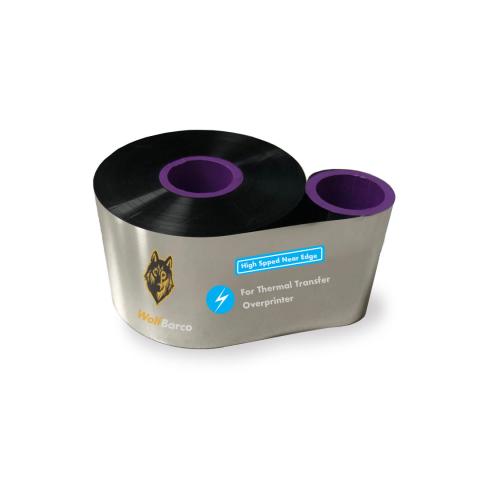
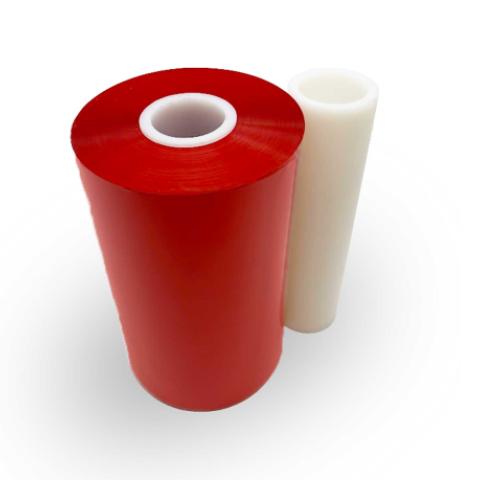
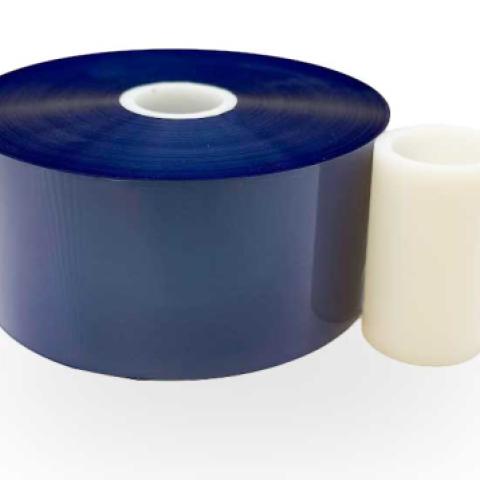
Thermal Transfer Ribbon Supplies for Videojet 9550 Thermal Printer Printer
Ribbon
FAQ for Videojet 9550 Thermal Printer Ribbons
What ribbon sizes are compatible with Videojet 9550?
What ribbon sizes are compatible with Videojet 9550?
The Videojet 9550 accepts ribbon widths from 2.2" ~ 6.40" (55mm ~ 162mm). Choose a ribbon at least 0.5" wider than your labels for optimal coverage.
What types of ribbons work with Videojet 9550?
What types of ribbons work with Videojet 9550?
The Videojet 9550 supports four ribbon types:
- Wax: Most economical. Best for paper labels and indoor use.
- Resin-Enhanced Wax: Moisture-resistant for longer-lasting prints with better resistance to abrasion. Can print on both paper and synthetic material.
- Wax-Resin: Better durability and scratch resistance. Good for synthetic labels.
- Resin: Maximum durability for harsh environments and polyester labels.
Choose based on your label material and durability needs.
How do I calibrate the Videojet 9550?
How do I calibrate the Videojet 9550?
If your Videojet 9550 is skipping labels or printing incorrectly, calibration is needed:
- Turn off the printer
- Press and hold FEED button while turning on
- Wait for the status light to flash
- Release - the printer will feed labels to calibrate
This teaches the printer to detect label size and gaps. Calibrate when changing label sizes.
I am unsure what to choose.
I am unsure what to choose.
Contact us for help selecting the best compatible ribbon for your print application. Please let us know the following information so we can provide an informed answer.
- Printer brand and model
- How will the label be used, indoor or outdoor?
- Exposure to extreme environments, such as freezing temperature, oil and chemicals?