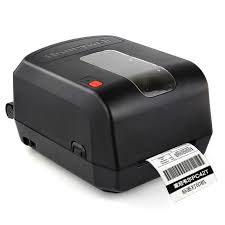
Honeywell - Intermec PC42t Thermal Printer Ribbons - Wax, Wax/Resin & Resin
|
Ink Side
Coated side out (CSO)
|
|||||||||
|
|
Thermal Transfer Ribbon Supplies for Honeywell - Intermec PC42t Thermal Printer Printer
Wolfbarco offers four grades thermal transfer ribbons, general purpose wax, premium wax, wax/resin and resin. It is critical to choose the appropriate grade of ribbon for your printing needs.
Ribbon
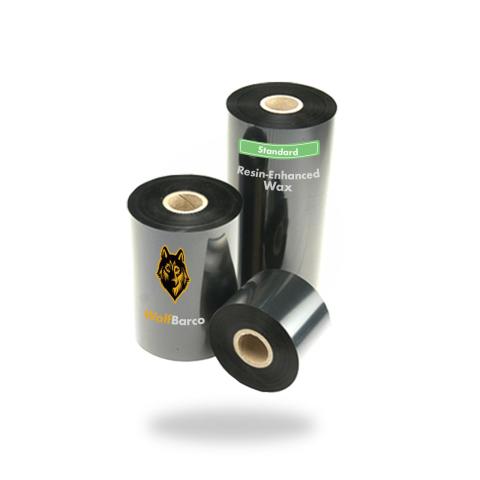
General Purpose Wax
Ink Side: Outside
Core Size: 1"
$3.58
per roll
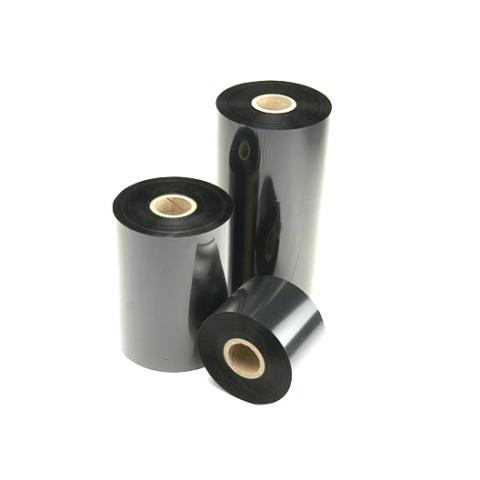
Standard Wax/Resin
Ink Side: Outside
Core Size: 1"
$11.73
per roll
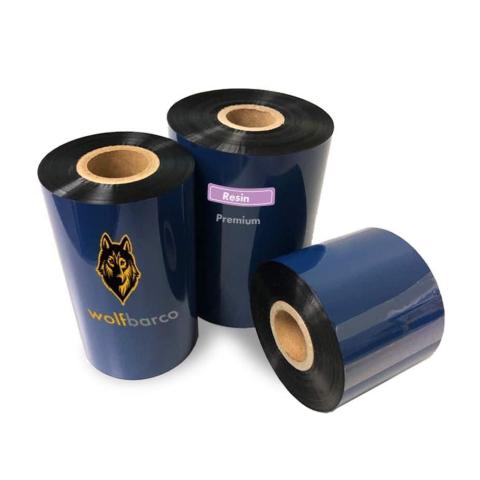
Standard Resin
Ink Side: Outside
Core Size: 1"
$16.07
per roll
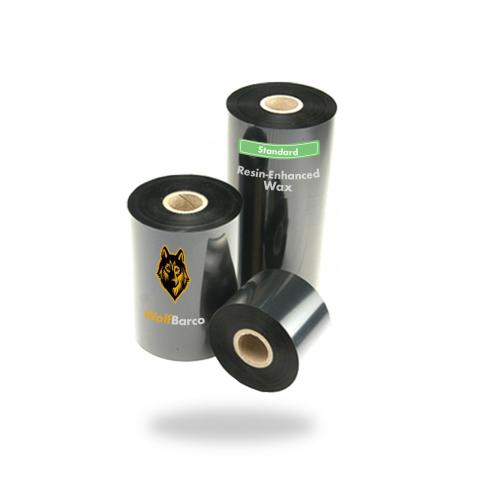
General Purpose Wax
Ink Side: Outside
Core Size: 1"
$3.78
per roll
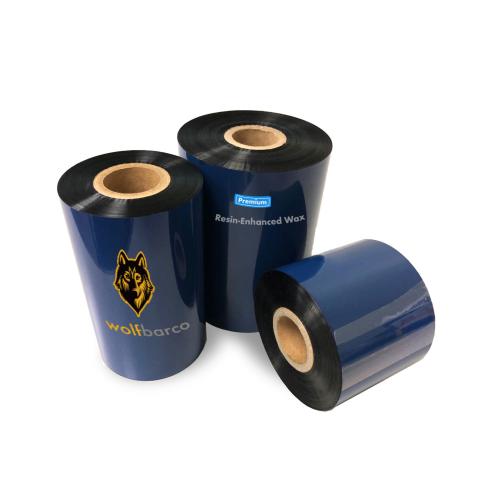
Wax
Ink Side: Outside
Core Size: 1"
$5.26
per roll
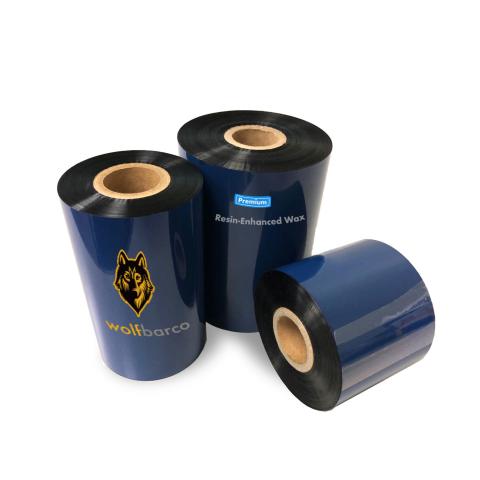
Premium Resin-Enhanced Wax
Ink Side: Outside
Core Size: 1"
$5.66
per roll
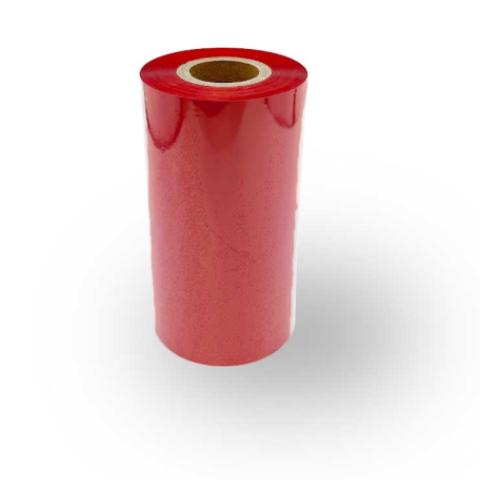
Color wax
Ink Side: Outside
Core Size: 1"
$17.23
per roll
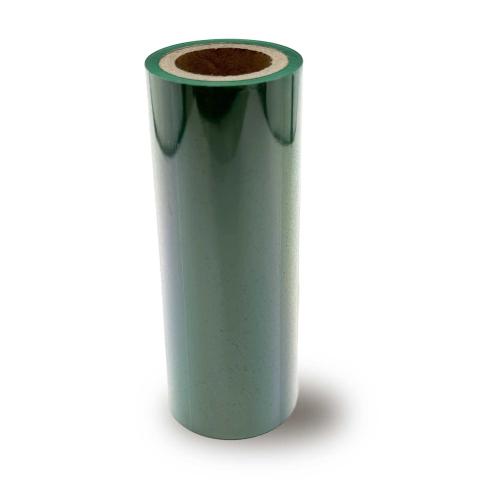
Color wax
Ink Side: Outside
Core Size: 1"
$17.23
per roll
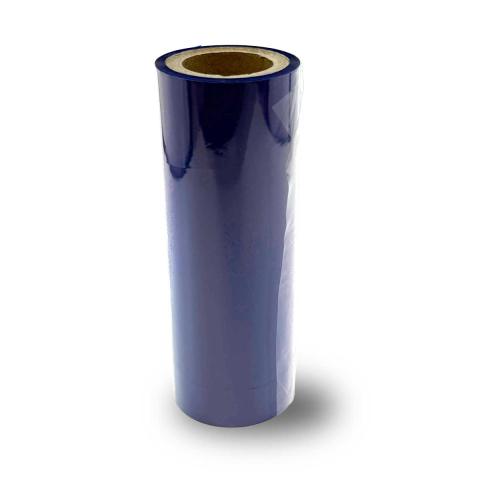
Color wax
Ink Side: Outside
Core Size: 1"
$17.23
per roll
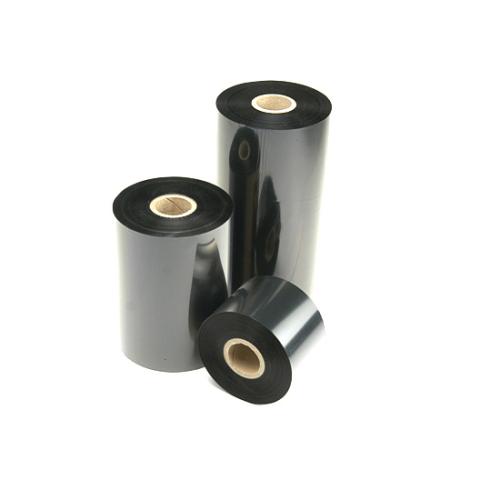
Thermal Transfer Ribbon
Ink Side: Outside
Core Size: 1"
$10.89
per roll
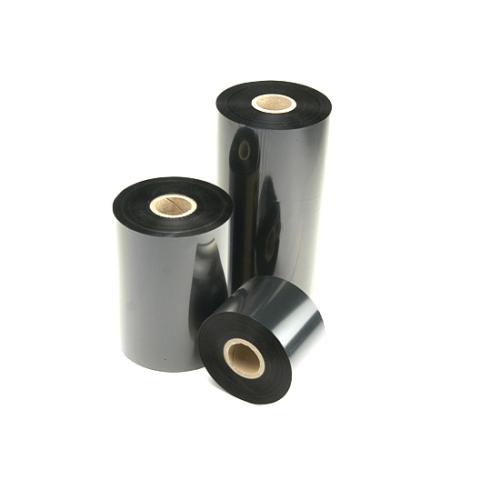
Resin
Ink Side: Outside
Core Size: 1"
$8.76
per roll
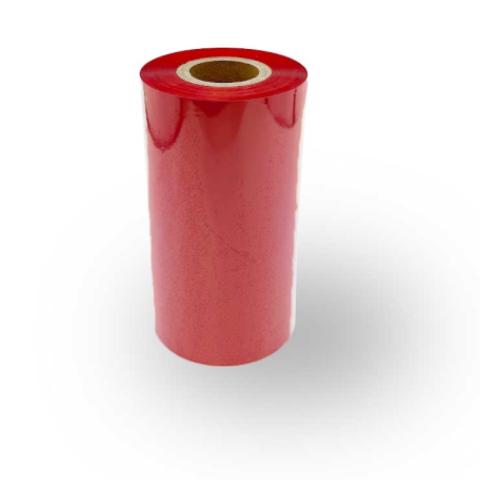
Color Resin
Ink Side: Outside
Core Size: 1"
$26.59
per roll
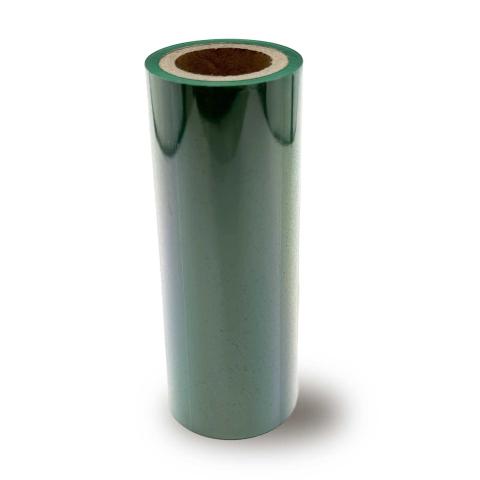
Color Resin
Ink Side: Outside
Core Size: 1"
$26.59
per roll
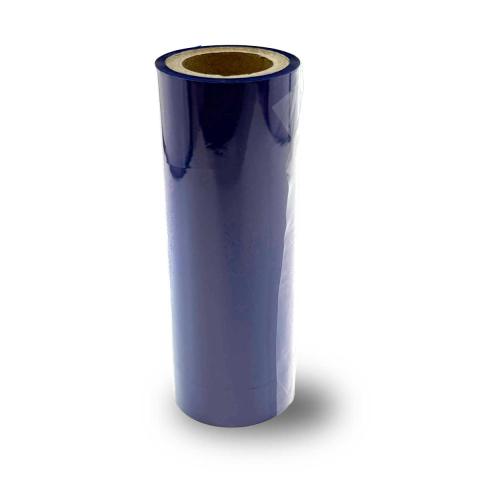
Color Resin
Ink Side: Outside
Core Size: 1"
$26.59
per roll
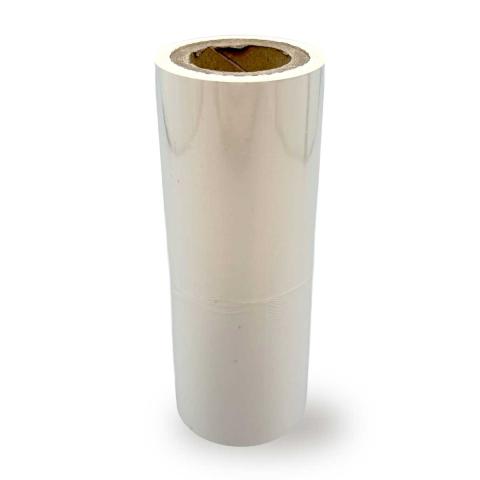
Color Resin
Ink Side: Outside
Core Size: 1"
$53.17
per roll
FAQ for Honeywell - Intermec PC42t Thermal Printer Ribbons
What ribbon sizes are compatible with Honeywell - Intermec PC42t?
What ribbon sizes are compatible with Honeywell - Intermec PC42t?
The Honeywell - Intermec PC42t accepts ribbon widths from 1.20" ~ 4.30" (30mm ~ 110mm). Standard lengths include 300 meters. Choose a ribbon at least 0.5" wider than your labels for optimal coverage.
What types of ribbons work with Honeywell - Intermec PC42t?
What types of ribbons work with Honeywell - Intermec PC42t?
The Honeywell - Intermec PC42t supports three ribbon types:
- Wax: Most economical. Best for paper labels and indoor use.
- Wax-Resin: Better durability and scratch resistance. Good for synthetic labels.
- Resin: Maximum durability for harsh environments and polyester labels.
Choose based on your label material and durability needs.
How do I calibrate the Honeywell - Intermec PC42t?
How do I calibrate the Honeywell - Intermec PC42t?
If your Honeywell - Intermec PC42t is skipping labels or printing incorrectly, calibration is needed:
- Turn off the printer
- Press and hold FEED button while turning on
- Wait for the status light to flash
- Release - the printer will feed labels to calibrate
This teaches the printer to detect label size and gaps. Calibrate when changing label sizes.